
login from a new device Key Takeaways
When you attempt to sign in from an unrecognized device or location, many platforms send a notification to your trusted phone or email.
- A login from a new device triggers a verification prompt that you must approve or deny within a limited time window.
- You can review details like device type, operating system, and approximate location before making a decision.
- If you don’t recognize the login, denying the request initiates account recovery steps to lock out the intruder.
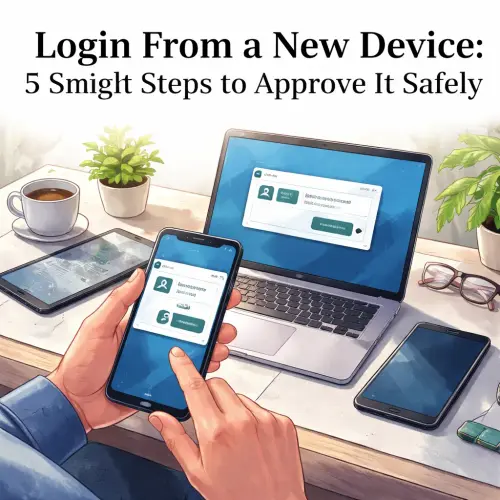
Why You Receive a Login From a New Device Notification
Modern online services, from email providers to banking apps, use device recognition as a core security layer. When you sign in from an unrecognized browser, mobile device, or IP address, the platform flags it as unfamiliar. Instead of immediately granting access, it sends a push notification, text message, or email asking you to verify the attempt.
This process is part of two-factor authentication (2FA) or adaptive authentication. It assumes that if you are the legitimate account owner, you can quickly confirm the request from your trusted device. The notification typically includes basic details about the attempt — device name, browser, operating system, and general location — so you can decide whether it’s safe.
What Happens During a New Device Login Attempt
When you or someone else tries to log into your account from a new device, the platform follows a standard sequence:
- Step 1 – Detection: The server checks the device fingerprint (cookies, user agent, IP) and compares it against previously approved devices.
- Step 2 – Alert: If the device is unknown, the platform sends a notification to your primary contact method (authenticator app, phone number, or registered email).
- Step 3 – Approval or Denial: You review the request and either approve it (which adds the device to your trusted list) or deny it (which blocks access and may trigger an account freeze).
Most platforms give you a limited window — often 10 to 30 minutes — to respond. After that, the login request expires, and the person attempting to sign in must start over. For a related guide, see Easy 2FA Setup for Mega8888: Secure Your Account in Minutes.
5 Smart Steps to Approve a Login From a New Device Safely
Follow these steps the next time you see a new device login notification. They apply to popular services like Google, Facebook, Apple ID, Microsoft, and most banking apps.
Step 1: Check the Notification Details Before Approving
Never tap “Approve” without checking the information provided. Legitimate platforms display the device model (e.g., “iPhone 14 Pro Max”), browser (e.g., “Chrome 120 on Windows 11”), and approximate location (e.g., “San Francisco, CA”). If any of these seem off — especially if the location is a city you’ve never visited — treat the request as suspicious.
Step 2: Use Your Primary Device to Respond
Always respond using the device you already trust — usually the one that received the notification. For example, if you get a push notification on your phone, approve or deny directly from that phone rather than accepting on a secondary device. This reduces the risk of a man-in-the-middle attack.
Step 3: Approve Only When You Just Initiated the Login
A simple rule of thumb: if you didn’t just try to sign in somewhere, never approve the request. Even if you recognize the device name (perhaps an old laptop), wait. Someone could have stolen that device or gained remote access. If you aren’t sure, deny the request and change your password immediately.
Step 4: Add the New Device to Your Trusted List if Appropriate
After approving a legitimate login from a new device, most services ask if you want to remember it. Choose “Yes” for personal devices (your home computer, personal phone) and “No” for public or shared computers (library terminals, friend’s phone). This prevents repeated prompts while maintaining security for high-risk environments. For a related guide, see Account Locked? 3 Easy Steps to Unlock After Too Many Failed.
Step 5: Review Approved Devices Periodically
Once a month, open your account security settings and review the list of approved devices. Remove any that you no longer use, have sold, or don’t recognize. This simple cleanup reduces your attack surface and keeps your login approval process streamlined.
How to Deny a Suspicious Login Request
If you see a login from a new device that you didn’t initiate, act quickly:
- Tap “Deny” or “This wasn’t me”: Most platforms have a clear button for this. Doing so blocks the access attempt and may alert the security team.
- Change your password immediately: Even if you denied the request, someone may have your password. Update it to something strong and unique.
- Enable two-factor authentication: If you haven’t already, turn on 2FA using an authenticator app (like Google Authenticator or Authy) for an extra layer of protection.
- Check for data breaches: Use a service like Have I Been Pwned to see if your email or phone number was exposed in a recent breach.
Common Issues When Approving a New Device Login
Even when you’re the legitimate user, sometimes the approval process goes wrong. Here’s how to fix frequent hiccups.
I Didn’t Receive the Notification
Check your notification settings on the trusted device. On iOS, ensure push notifications are enabled for the app. On Android, check that the app’s notifications aren’t blocked. Also verify that your phone number or backup email is up-to-date in your account settings. If you’re still not receiving alerts, the platform may be sending them to an old device — log into your account via a desktop browser and update your contact methods.
The Approval Button Doesn’t Work
This usually happens when you wait too long to respond. Most notifications expire after 10-15 minutes. If the button is grayed out or doing nothing, close the notification and try logging in again from the new device. If the problem persists, clear the cache of the trusted app or uninstall and reinstall it.
You Approved But Still Can’t Access the Account
Some services require you to confirm approval on the new device itself. For example, after approving a push notification, you might still need to enter a code sent via SMS on the new device. Check your text messages or the authenticator app for a time-sensitive code.
Best Practices to Streamline Login Approval in the Future
Once you’ve successfully approved a login from a new device, take a few proactive steps to make future logins smoother and more secure.
- Use a password manager: Tools like 1Password or Bitwarden can autofill credentials on trusted devices, reducing the frequency of new device login prompts.
- Set up trusted devices: Add your main smartphone and personal laptop as trusted devices so they don’t trigger verification each time.
- Enable backup codes: Most platforms generate a set of one-time backup codes. Print them and store them safely — they let you log in even if you lose your phone.
- Keep contact methods current: An outdated phone number or email is a common reason for lockouts. Review and update these every few months.
Useful Resources
- UK National Cyber Security Centre – Setting up 2FA
- National Cybersecurity Alliance – Keep Your Accounts Secure
Frequently Asked Questions About login from a new device
What does and quot;login from a new device and quot; mean?
It means someone (possibly you) is trying to sign into your account from a device that the platform hasn’t seen before. The service sends you a notification to verify the attempt.
Why did I get a login notification when I didn’t try to log in?
This usually means someone else has your password and is trying to access your account. Deny the request immediately and change your password.
Can I approve a login from a new device without my phone?
Some services allow you to approve via backup codes, a trusted email address, or a hardware security key. Check your account recovery options in advance.
How long do I have to approve a new device login ?
Most platforms give you between 5 and 30 minutes. After that, the request expires and you’ll need to initiate a new login attempt.
What happens if I don’t respond to the notification?
The login attempt is automatically blocked or times out. No access is granted until you approve a future request.
How does a platform know a device is and quot;new and quot;?
It uses a combination of browser cookies, device fingerprint (screen resolution, installed fonts, user agent), IP address, and geolocation data to create a unique identifier for each device.
Is it safe to approve a login from a new device if I recognize the location?
Not necessarily. Location data can be approximate or spoofed. Always confirm that you personally initiated the login in the last few minutes.
Can I approve a login from a new device on someone else’s phone?
You can, but ensure the phone is trusted and that you log out of any sensitive apps afterward. Better yet, use backup codes or a hardware key instead.
Why does the notification show a city I don’t recognize?
Location is based on your IP address and can be inaccurate, especially if you’re using a VPN or mobile data. Compare it with your current rough location rather than an exact address.
What should I do if I accidentally approved a fraudulent login?
Change your password immediately, revoke the device’s access from security settings, and review your recent account activity for suspicious actions.
Does approving a new device login give it permanent access?
Yes, until you manually remove it from your trusted devices list. For public computers, always decline the “remember this device” prompt.
Can I see a history of approved new device logins?
Yes. Most platforms have a security activity log where you can see every login attempt, including device details, time, and location.
Will I get a notification each time I use the same new device?
No. Once you approve and choose to remember the device, future logins from it will not trigger a notification unless the device fingerprint changes (e.g., after clearing cookies or reinstalling the OS).
Is it possible to turn off new device login notifications?
Most security-conscious platforms do not allow you to disable this feature entirely. You can reduce frequency by keeping devices trusted, but you cannot eliminate the protection.
What’s the difference between a new device login and a two-factor authentication code?
A new device login notification is a verification request that you approve or deny with a single tap. A 2FA code is a time-sensitive number you must type in. Some platforms use both together.
How does Apple handle login from a new device?
Apple sends a push notification to all your trusted devices, displaying a map of the approximate location. You tap Allow to see a verification code, then enter that code on the new device.
How does Google handle login from a new device?
Google prompts you on your phone with the device type, operating system, and location. You can tap Yes or No. The option appears in Google’s Smart Lock settings.
What if I lose my trusted device?
Use backup codes that you saved earlier, or recover your account through the platform’s identity verification process (usually by answering security questions or providing a government ID).
Can a login from a new device notification be faked?
Phishing attackers sometimes send fake notifications that look like real platform alerts. Always verify the source — real notifications come from the app itself or from the official domain (e.g., @google.com), not from random numbers or email addresses.
Should I approve a login from a new device if I’m traveling?
Yes, but be extra cautious. Use a VPN on public Wi-Fi, and after traveling, remove the temporary device from your trusted list as a precaution.